Are Online Image Converters Safe? What Happens to Your Files
Private Image Converter — free & instant
Convert, compress and edit images entirely in your browser — no uploads, no account. Verify it yourself in DevTools. Free and private.
You drop a photo into a free online converter, wait a second, and download the result. Simple. But where did your photo actually go in that second? For most converters, the answer is: off your device, up to a company's server, and into their hands. For a meme or a screenshot, who cares. For an ID, a signed contract, a bank statement or a private photo, you just handed a copy to a company you know nothing about. This article explains what really happens to your files when you use an online image converter, the risks that are easy to miss, and how to check any tool yourself in about thirty seconds.
The short version: there are two kinds of converters, and they treat your files completely differently. One uploads. One does not. You cannot tell which is which from the homepage — but you can prove it in your browser, and this guide shows you how.
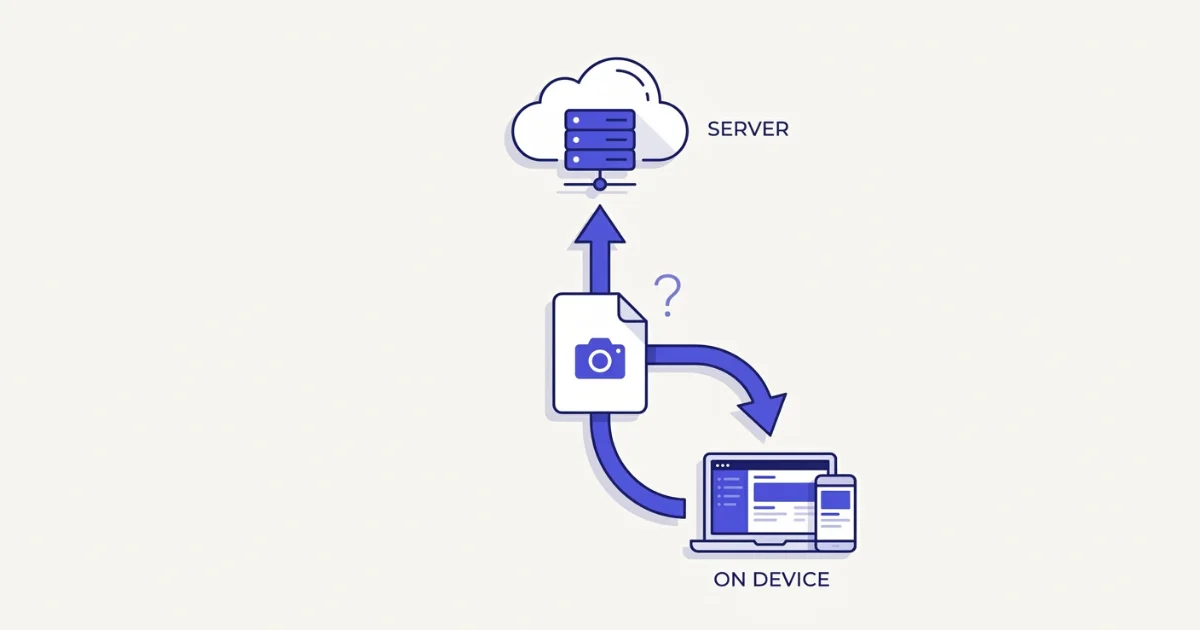 When you convert a photo online, it either goes to a server or stays on your device. The difference is everything.
The two kinds of online converter
Server-side converters do the work on their own machines. When you select a file, it is uploaded to a remote server, converted there, and the result is sent back to you. Most well-known online tools — the big all-in-one PDF and image sites — work this way, because it lets them run heavy processing you could not do in a browser a few years ago. The catch is that your original file leaves your device and sits, however briefly, on hardware you do not control.
Client-side converters do the work inside your own browser. Modern browsers can decode, resize and re-encode images natively (with the Canvas API), and WebAssembly handles the trickier formats like HEIC. The file is read into your device's memory, converted there, and handed back as a download. Nothing is uploaded, because nothing needs to be.
Both give you a converted file. Only one of them keeps the original on your device.
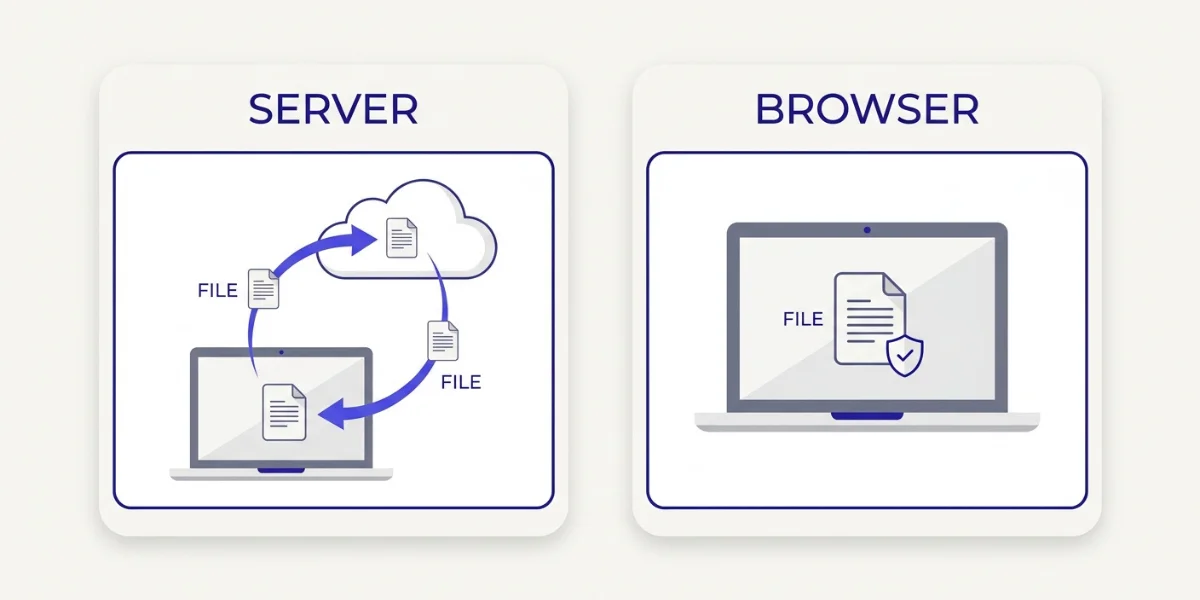 Server-side sends your file to the cloud and back; client-side keeps it on your device.
What actually happens when you upload a file
Uploading is not automatically sinister — plenty of reputable services process files responsibly. But you are trusting a company you cannot see, and the risks are real enough that they are worth naming.
Your file is stored, at least for a while. Many services keep uploaded files on their servers for a period — often an hour, sometimes a day or more — before deleting them. During that window your document exists on someone else's disk, and if that server is ever breached, so is your file.
Your photos carry hidden metadata. A photo straight from a phone contains EXIF data: GPS coordinates, the device model, the exact date and time. Upload it and that data goes too, unless the service strips it — and some quietly harvest it.
"Free" sometimes means you are the product. A converter has to pay for its servers somehow. Some do it with ads; a few do it by mining what you upload — scraping text from documents to build advertising profiles, or feeding uploaded images into datasets. You rarely find out which.
The terms may grant more than you think. Buried in the terms of service of some free tools is a licence to store, process or reuse what you upload. People click through it without reading, and the file is gone before they realise.
None of this means every online converter is dangerous. It means you are taking a bet you do not need to take — especially for anything private.
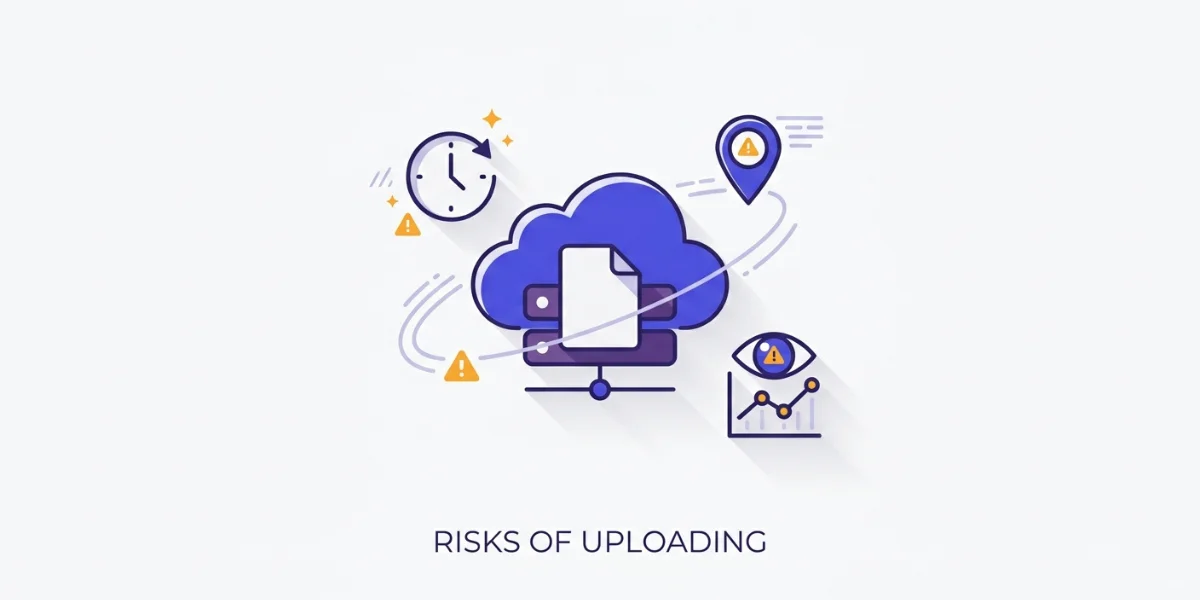 Uploaded files can be retained, mined for metadata, or reused under terms you did not read.
How to check whether a converter is uploading your file
Here is the part that puts you back in control. You do not have to trust a privacy promise on a homepage — you can watch what the tool actually does, in the browser you already have. Two quick tests:
The DevTools test (definitive).
- Open the converter, but do not add your file yet.
- Press F12 to open Developer Tools, and click the Network tab.
- Now add a file and convert it.
- Watch the Network list. If your file is being uploaded, you will see a large outgoing request appear the moment you convert — often labelled with your filename or a big payload size. If the tool runs in your browser, you will see no such upload — the file never goes out.
The Wi-Fi test (simple).
Load the converter's page, then turn off your Wi-Fi or unplug your network. Now try to convert a file. A server-based tool will stall or fail, because it cannot reach its server. A genuine in-browser tool will convert anyway — proof that it never needed the network in the first place.
Either test takes under a minute, and it works on any online converter, not just the ones you already trust.
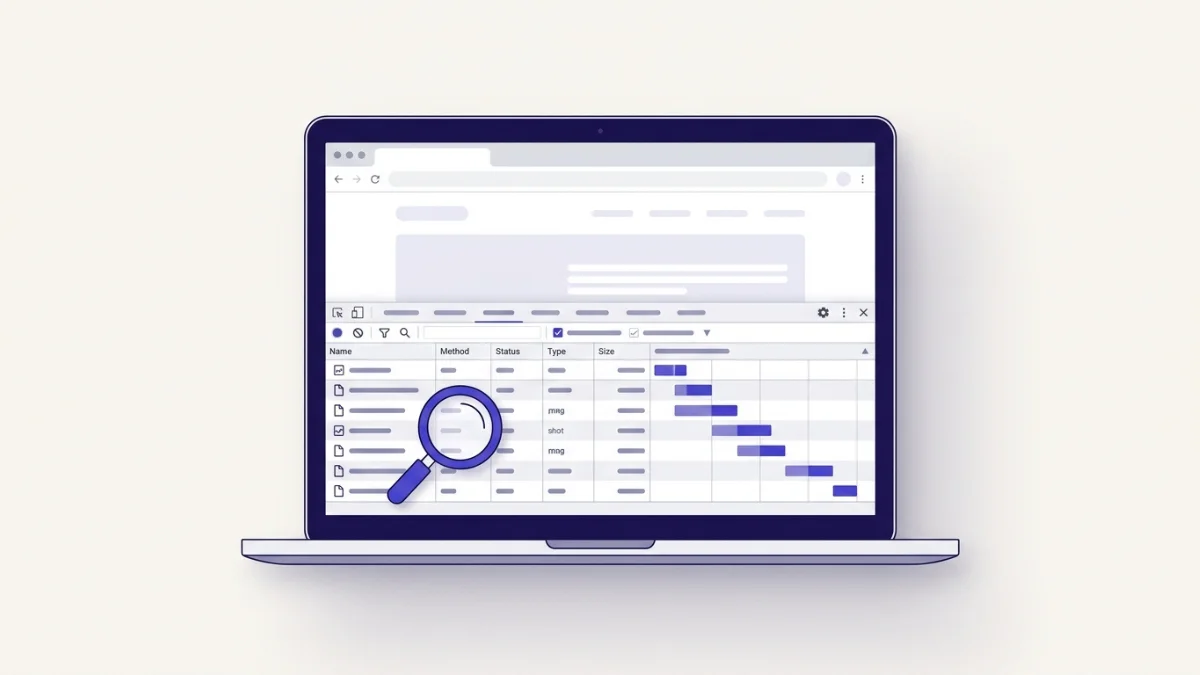 Open DevTools, watch the Network tab, and convert — an upload shows up instantly, or it does not.
So which converters upload, and which do not?
As a rule of thumb, the big all-in-one online tools are server-based — they upload your file to convert it, because that is how they were built. A smaller and growing group of converters run entirely in the browser and say so plainly, often inviting you to verify it in DevTools.
The honest answer, though, is that you should not take anyone's word for it — including this article's. Tools change, and a claim on a homepage is just a claim. Run the DevTools or Wi-Fi test on whatever you are about to use. A tool that truly runs in your browser will pass; one that uploads cannot hide it.
When it matters (and when it honestly does not)
Not every file needs this level of care. Converting a meme, a stock image, or a screenshot with nothing private in it? Upload it to whatever is convenient; the stakes are zero.
The files to be careful with are the personal ones:
- Photos of an ID, passport, or driving licence
- Signed contracts, bank statements, payslips, tax documents
- Medical letters, scans and records
- Personal or intimate photos
- Anything for a client that has not been released
For those, the rule is simple: do not upload them to a server-based tool. Use a converter that does the work on your own device, or convert them offline. The inconvenience is nil; the risk you avoid is real.
What a genuinely private converter looks like
If privacy is the point, here is what to look for — and what to verify:
- No upload. The file is processed in your browser, not on a server. Confirm it with the DevTools test.
- No account. You should not have to hand over an email to convert a photo.
- Works offline. If it keeps working with your Wi-Fi off, it was never sending your file anywhere.
- No hidden reuse in the terms. A private tool has nothing to store, so it has nothing to license.
This is exactly the standard VisualConvert is built to. Conversion, compression, resizing and even the AI background remover all run in your browser, so your files never leave your device — and you do not have to take that on faith. Open the Network tab and test it, or turn your Wi-Fi off and watch it keep working. There is a plain-English explanation on the privacy page, and an offline converter built for exactly the sensitive files above.
Last word
Online image converters are not all the same. Most upload your file to a server; some do the whole job on your own device. For anything you would not hand to a stranger, that difference is the difference between convenient and careless. The good news is that you never have to guess: open DevTools, watch the Network tab, and convert — the truth shows up in one request, or the absence of one.
When you have a private file to convert, use a tool you can verify runs in your browser. Test VisualConvert the same way — turn your Wi-Fi off and watch it convert anyway. Your files stay yours because they never leave your device.