How to Convert a PDF to JPG (Free, Every Page, No Upload)
Convert PDF to JPG — free & instant
Turn every page of a PDF into a sharp JPG image, right in your browser. Free, no upload, no sign-up.
You have a PDF, but you need it as an image — to post a page on social media, to drop into something that will not accept PDFs, or to upload where the form only takes JPGs. A PDF will not do; you need each page as a picture. This guide shows you how to convert a PDF to JPG for free — every page, at good quality — without uploading your document to a stranger's server.
We will cover the fastest way, how to get every page as its own JPG (or just the one page you need), how to keep the result sharp, and how to do it on any device.
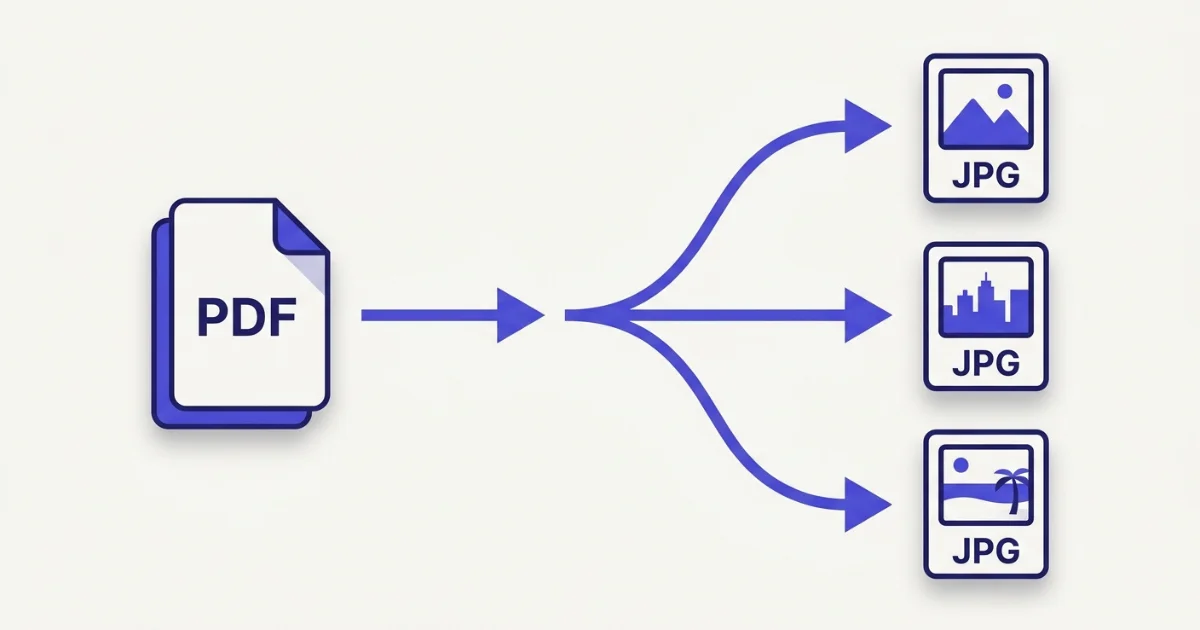 Every page of the PDF comes out as its own JPG image.
The fastest way: convert a PDF to JPG in your browser
This needs nothing installed and works the same on a phone or a laptop.
- Open the PDF to JPG tool in any browser.
- Drop your PDF in.
- Each page is rendered to a JPG. Download one page, or grab the whole set as a ZIP.
The conversion runs inside your browser, on your own device, so the PDF is never uploaded. That matters when the document is a contract, a statement, an ID or anything you would not hand to a stranger — a browser tool reads the file locally and sends nothing over the network. Turn your Wi-Fi off after the page loads and it still works, because the file never left your machine.
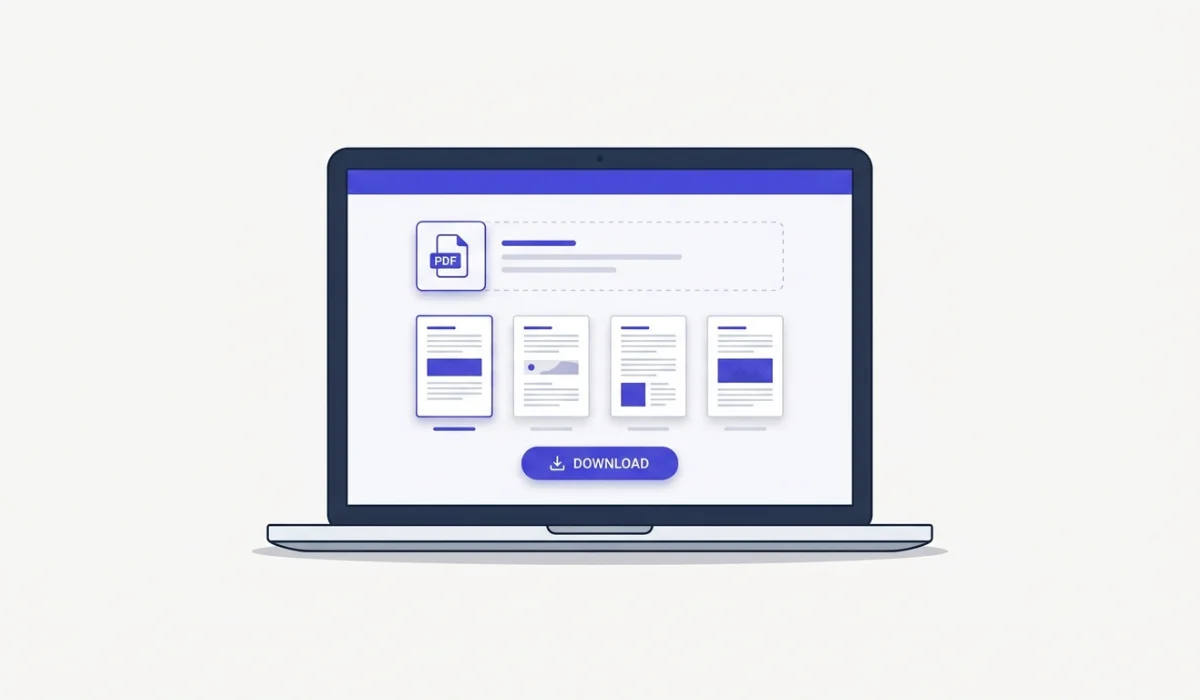 Drop the PDF in and download each page as a JPG, or all of them as a ZIP.
Every page becomes its own JPG
A JPG holds one image, so a converter turns each page of the PDF into a separate JPG — a ten-page PDF gives you ten images, in order, page one first. Download them together as a ZIP, or, if you only need a single page, take just that one.
If you actually want the pages back as one file rather than separate images, that is the opposite job: combine them into a document with the JPG to PDF tool instead.
Keep it sharp: choosing the resolution
The one setting that matters is resolution, measured in DPI. Higher DPI means a sharper, larger image; lower means a smaller, softer one. For sharing a page on screen or social media, around 150 DPI is plenty. For anything you will print or zoom into, aim for 300 DPI. A good converter renders at a high enough resolution that text stays readable — if your output looks soft, that is the setting to raise.
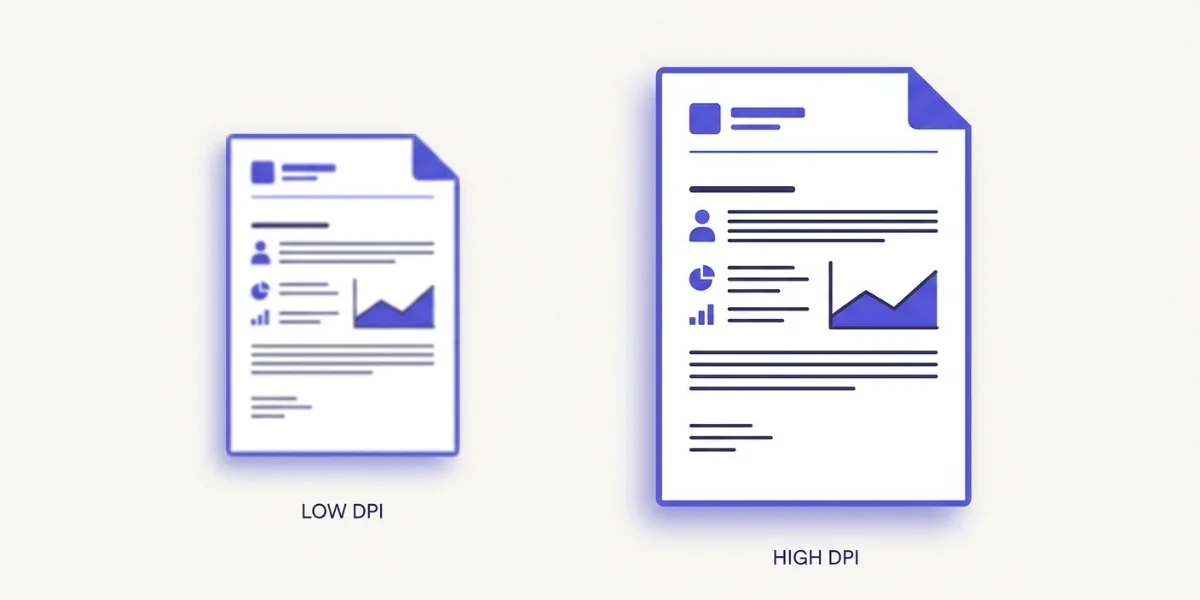 Higher DPI keeps text and lines crisp; lower DPI makes a smaller, softer image.
JPG or PNG for a PDF page?
Both turn a page into an image, but they suit different pages. JPG is the right call for pages that are mostly photos or colour — it makes small files that open everywhere. PNG is sharper for a page that is mostly text, tables or line diagrams, because JPG adds faint fuzz around hard edges while PNG keeps them crisp.
So: a photo-heavy page or a scan of a picture goes to JPG; a text document or a diagram looks cleaner as PNG. If your page is text-heavy, use the PDF to PNG tool instead — there is a full walkthrough in the guide to converting PDF to PNG.
How to convert a PDF to JPG on any device
Browser, any device. The PDF to JPG tool is the one I use — it renders every page, lets you download them together, and never uploads the file. It works the same in Chrome, Edge, Safari and Firefox, on a computer or a phone.
Windows. There is no clean built-in PDF-to-JPG. You can screenshot a page with the Snipping Tool, but the quality is poor and you crop by hand. The browser tool is faster and sharper for a real conversion.
Mac. Preview can export a PDF page to JPEG: open the PDF, choose File then Export, and set the format to JPEG. It exports the page you are viewing, so for a multi-page PDF the browser tool is quicker because it does every page in one pass.
iPhone and Android. Phones have no clean way to turn a PDF into separate JPGs. Open the browser tool on the phone and it converts every page on the device itself.
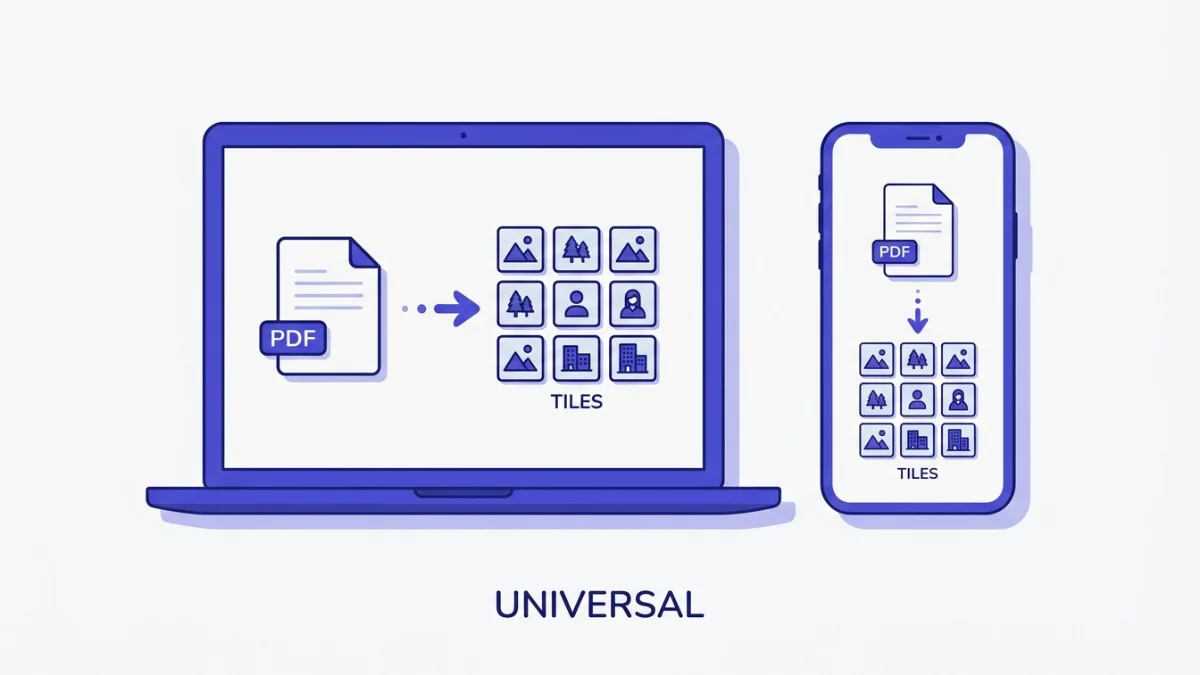 The browser tool does every page at once; Preview exports one page at a time on a Mac.
What people convert a PDF to JPG for
A few common reasons: posting a single page of a PDF as an image on social media or in a chat; uploading a page to a form that only accepts JPG; pulling a photo or a figure out of a PDF to reuse it; or dropping PDF pages into a slideshow that wants images, not documents.
Common problems and quick fixes
The JPG came out blurry. You exported at a low resolution. Raise the DPI or quality setting; 150 for screen, 300 for print.
Only the first page converted. Your tool stopped at page one. Use a converter that renders every page, then download the full set.
The text looks fuzzy. JPG adds faint halos around sharp black text. For a text-heavy page, convert to PNG instead, which keeps edges clean.
The images are too large to upload. Convert at a lower DPI, or run the JPGs through the compress tool to hit a size limit.
Keeping your document private
PDFs are often the confidential kind — contracts, bank statements, medical letters, signed forms. Most online converters upload the whole file to their servers, leaving a copy on a machine you do not control. A browser-based converter renders the pages on your own device and uploads nothing, so a private document never leaves your machine. For anything sensitive, that is the difference that matters, and it costs you nothing in speed.
Last word
Converting a PDF to JPG turns a document into images you can post, upload and reuse anywhere. Take the whole set as a ZIP or just the page you need, raise the resolution if the result looks soft, and reach for PNG instead when the page is mostly text.
When you have a PDF to turn into images right now, open the PDF to JPG tool, drop it in, and download your pages in a couple of clicks. It is free, it works on any device, and your document never leaves the browser.